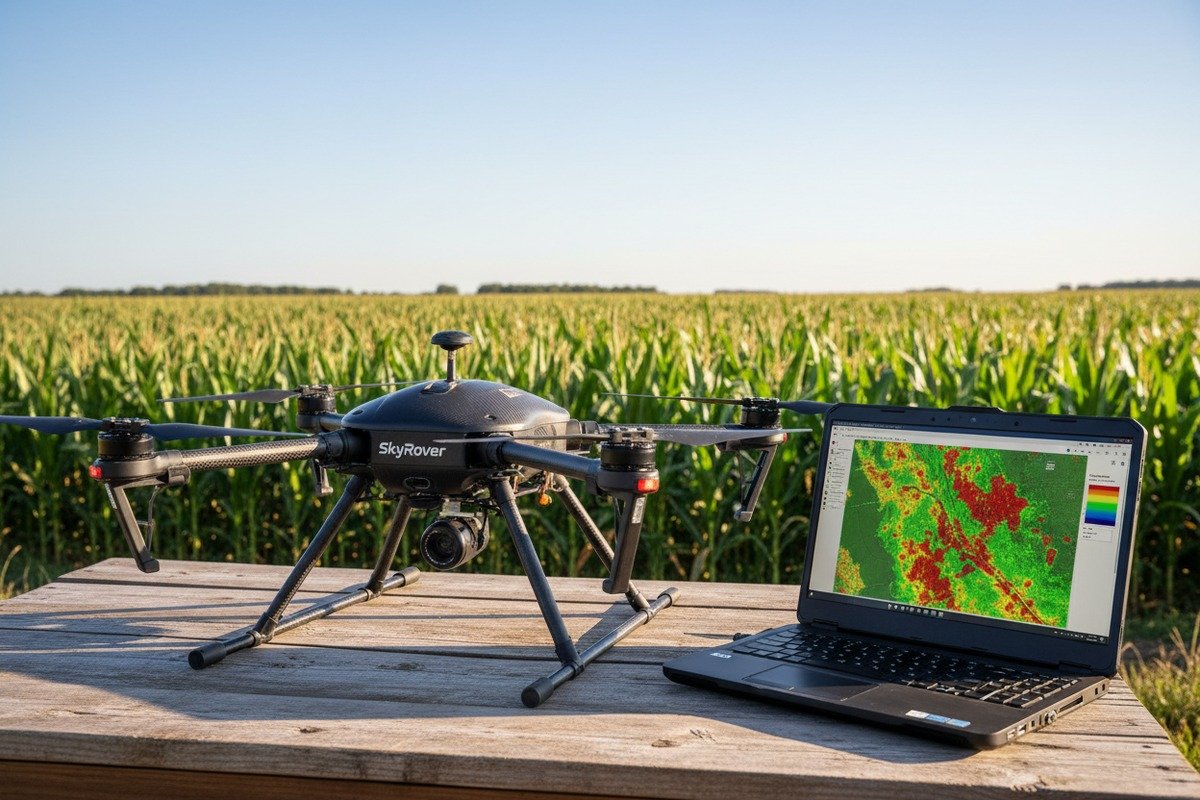
When our engineering team first started shipping agricultural drones to US farms, we learned a hard lesson. Many customers struggled to get their drone mapping data into existing GIS workflows 1. The problem wasn’t the hardware—it was compatibility gaps nobody anticipated.
To evaluate agricultural drone mapping module compatibility with US GIS software, verify that your drone outputs standard formats like GeoTIFF, Shapefile, and LAS files. Confirm the mapping module supports your target platform (ArcGIS or QGIS), generates required agricultural indices like NDVI, and embeds accurate GPS/RTK metadata in image files.
This guide walks you through the complete evaluation process. We’ll cover verification methods, data formats, firmware customization, and troubleshooting. Let’s get started.
How do I verify if my agricultural drone's mapping module is fully compatible with ArcGIS or QGIS?
Our export team fields this question weekly from US distributors. They purchase drones expecting seamless GIS integration. Then they discover their mapping module speaks a different language than their software. This wastes time and money.
To verify full compatibility, check three things: your drone must embed GPS coordinates in image EXIF data, your mapping software must support your specific camera model, and your GIS platform must accept the output formats. Test with a small dataset before committing to large-scale operations.
Understanding the Three-Layer Compatibility Stack
Compatibility isn't a single checkbox. It's a chain with three links. If any link breaks, your workflow fails.
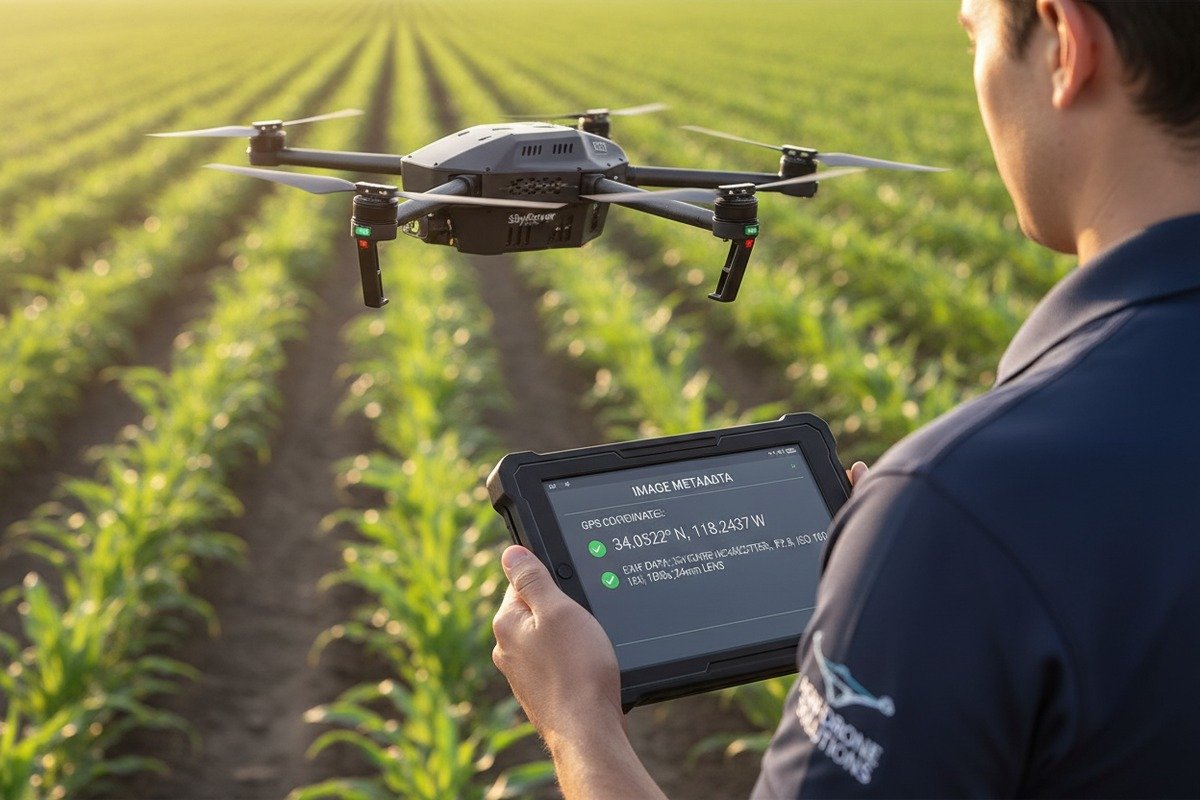
The first layer is drone hardware. Your agricultural drone must automatically embed latitude, longitude, and altitude in every image. This happens through EXIF metadata 2. Without this, mapping software cannot georeference your imagery.
The second layer is mapping software. Programs like Pix4D, Agisoft Metashape, or DroneDeploy process raw images into usable outputs. They must support your specific multispectral camera model 3.
The third layer is your GIS platform. ArcGIS dominates US agricultural operations. QGIS 4 offers a free alternative. Both need compatible input formats.
ArcGIS Compatibility Checklist
Esri's ArcGIS 5 Drone2Map is purpose-built for drone integration. When we calibrate our mapping modules, we test against Drone2Map first because most US agricultural operations use Esri products.
| Anforderung | Was ist zu prüfen? | Warum es wichtig ist |
|---|---|---|
| Georeferenced Images | EXIF contains GPS data | Enables automatic alignment |
| Supported Camera | Camera model on Esri's list | Ensures radiometric calibration |
| Output Formats | GeoTIFF 6, Shapefile support | Direct import into ArcGIS Pro |
| Coordinate System | WGS84 or NAD83 | Matches US projection standards |
| Multispectral Support | NDVI/SAVI generation | Agricultural analysis capability |
QGIS Compatibility Considerations
QGIS accepts most standard formats. However, you may need additional plugins for advanced agricultural analysis. The Orfeo ToolBox and Semi-Automatic Classification Plugin extend QGIS capabilities significantly.
Practical Verification Steps
Before purchasing or deploying, run this test. Capture 20-30 images over a small test area. Process them through your mapping software. Import the results into your GIS platform. Check for:
- Correct geographic positioning
- Proper layer alignment
- Readable attribute data
- Accurate index calculations
If any step fails, you've identified your compatibility gap early.
What specific data output formats should I look for to ensure seamless integration with my US GIS software?
In our production line, we configure mapping modules to output multiple formats by default. This decision came from customer feedback. One format rarely satisfies everyone's needs. Different GIS workflows demand different file types.
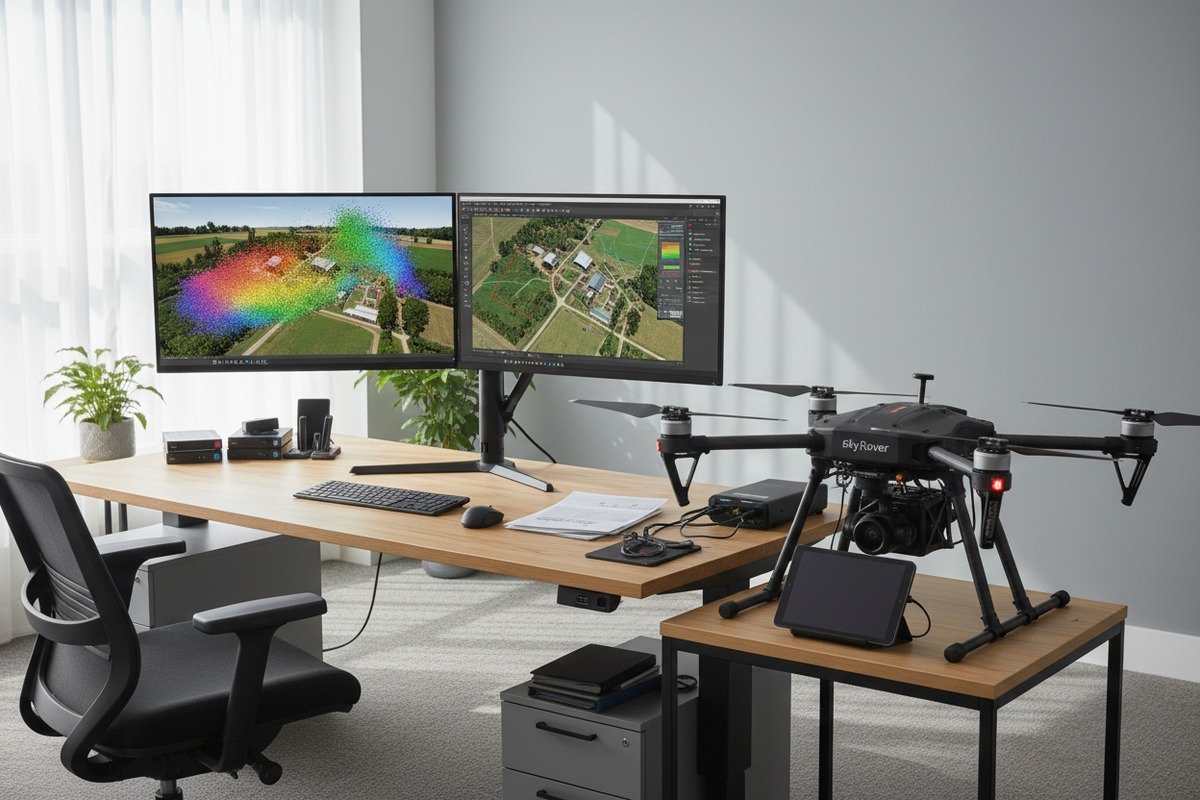
For seamless US GIS integration, prioritize these formats: GeoTIFF for raster imagery and orthomosaics, Shapefile (.shp) for vector data, LAS/LAZ for point clouds, and DXF for CAD compatibility. Additionally, ensure your module generates standard vegetation indices in compatible raster formats.
Essential Raster Formats
Raster data represents continuous surfaces like elevation models and vegetation maps. GeoTIFF is the universal standard. Every major GIS platform reads it natively.
Your mapping module should export:
- Orthomosaics – Corrected aerial imagery stitched into a single map
- Digital Surface Models (DSM) – Elevation including crops and structures
- Digital Terrain Models (DTM) – Ground-level elevation only
- Index Maps – NDVI, NDRE, SAVI for crop health analysis
Vector Format Requirements
Vector data defines discrete features like field boundaries and sample points. The Shapefile format 7, despite its age, remains dominant in US agriculture.
| Format | Extension | Best Use | ArcGIS Support | QGIS Support |
|---|---|---|---|---|
| Shapefile | .shp | Field boundaries, points | Native | Native |
| GeoJSON | .json | Web applications | Import required | Native |
| KML/KMZ | .kml | Google Earth sharing | Import required | Native |
| GeoPackage | .gpkg | Moderne Alternative | Native | Native |
| DXF | .dxf | CAD integration | Import required | Plugin |
Point Cloud Standards
LiDAR and photogrammetry generate point clouds. These dense 3D datasets require specific formats.
LAS files are the industry standard. LAZ files are compressed versions. Both work with ArcGIS and QGIS. When our team tests new mapping modules, we verify LAS 1.4 compliance specifically. Older formats may lose critical classification data.
Metadata and Coordinate Reference Systems
Beyond file formats, coordinate reference systems matter enormously. US agricultural operations typically use:
- NAD83 – North American Datum 1983
- WGS84 – GPS standard worldwide
- State Plane Coordinates – For state-specific applications
- UTM Zones – Universal Transverse Mercator for regional work
Your mapping module should embed CRS information directly in output files. Without embedded projection data, GIS software cannot position your data correctly.
OGC Standards Compliance
Die Open Geospatial Consortium 8 sets interoperability standards. Compliance ensures your data works across platforms. Look for:
- WMS (Web Map Service) compatibility
- WFS (Web Feature Service) support
- WCS (Web Coverage Service) for raster data
These standards enable your drone data to integrate with web-based GIS applications and enterprise systems.
Can I customize the mapping module firmware to better align with my company's existing GIS workflow?
When we collaborate with US distributors, firmware customization requests are common. Each operation has unique workflows. Off-the-shelf settings rarely match perfectly. Our engineering team has developed flexible firmware architectures specifically for this reason.
Yes, mapping module firmware can often be customized to match your GIS workflow. Customization options include default output format selection, coordinate system presets, vegetation index configurations, and automated processing parameters. However, customization capability varies by manufacturer—choose partners offering OEM services and development collaboration.

What Firmware Elements Can Be Modified
Not all firmware components are equally customizable. Understanding the hierarchy helps set realistic expectations.
| Komponente | Anpassungsstufe | Typical Modifications |
|---|---|---|
| Output Formats | Hoch | Default exports, compression settings |
| Coordinate Systems | Hoch | Regional presets, projection defaults |
| Index Calculations | Mittel | Custom band math, threshold values |
| Processing Parameters | Mittel | Resolution settings, overlap requirements |
| Camera Calibration | Niedrig | Usually locked to sensor specifications |
| Core Flight Systems | Sehr niedrig | Safety-critical, rarely modified |
Workflow-Specific Customization Examples
Let me share what we've done for previous clients. A California vineyard management company needed automated NDRE calculations with specific threshold alerts. We modified their firmware to flag pixels below their defined threshold in real-time.
An Iowa corn monitoring operation required direct integration with their John Deere Operations Center. We adjusted output formatting and metadata tagging to match their import specifications exactly.
The OEM Development Process
Working with manufacturers on custom development typically follows this path:
- Requirements Definition – Document your exact workflow needs
- Technical Feasibility Review – Engineers assess what's possible
- Development Agreement – Terms, timeline, and costs established
- Prototype Testing – Modified firmware tested against your workflow
- Iteration – Adjustments based on field testing
- Deployment – Final firmware flashed to production units
Cost and Timeline Considerations
Customization isn't free. Simple parameter changes may be included in OEM agreements. Complex modifications require development fees. Timeline varies from weeks to months depending on scope.
However, the investment often pays off. One US distributor calculated that custom firmware saved their field technicians 4 hours per week in post-processing. Over a fleet of 20 drones, that's significant operational savings.
Open-Source Alternatives
Some mapping modules run on open-source platforms. These offer maximum customization flexibility but require in-house development capability. If your team includes software engineers comfortable with drone firmware, this path provides unlimited control.
How do I troubleshoot data synchronization issues between my drone hardware and my mapping analysis software?
Our technical support team handles synchronization issues daily. When we ship drones worldwide, we know connectivity challenges will arise. Different software versions, network conditions, and hardware configurations create countless potential failure points.
To troubleshoot data synchronization issues, follow this sequence: verify physical connections and storage media, check file integrity and completeness, confirm software version compatibility, validate GPS/RTK accuracy settings, and test with known-good sample data. Systematic elimination identifies root causes faster than random troubleshooting.

Common Synchronization Problems and Solutions
Most synchronization failures fall into predictable categories. Understanding these accelerates troubleshooting.
| Symptom | Likely Cause | Solution |
|---|---|---|
| Missing images | Incomplete transfer | Re-copy from SD card, check card health |
| Misaligned orthomosaic | GPS drift or loss | Verify RTK fix status, use ground control points |
| Software import failure | Format mismatch | Check export settings, update software |
| Corrupted files | Storage media failure | Replace SD card, verify card speed rating |
| Wrong projection | CRS mismatch | Confirm coordinate system settings |
| Missing metadata | EXIF stripping | Check transfer method, avoid compression |
Step-by-Step Diagnostic Process
When our clients report synchronization issues, we walk them through this process.
Step 1: Verify Raw Data Integrity
Connect your storage media directly to a computer. Check that all expected files exist. Open sample images in a basic viewer. If raw data is corrupted or missing, the problem occurred during capture or transfer—not synchronization.
Step 2: Test Metadata Presence
Use an EXIF viewer to confirm GPS coordinates exist in image files. Missing metadata indicates either a drone configuration issue or a transfer process that strips metadata. Some cloud transfer services remove EXIF data by default.
Step 3: Validate Software Compatibility
Ensure your mapping software version supports your hardware. Check the manufacturer's compatibility matrix. Update if necessary. Version mismatches cause subtle failures that appear as synchronization problems.
RTK and GPS Accuracy Issues
RTK systems achieve centimeter-level accuracy. But they require proper base station configuration. When synchronization appears successful but data positions incorrectly, check:
- Base station coordinates accuracy
- RTK fix status during flight
- Coordinate system matching between drone and GIS
Network and Cloud Synchronization
Cloud-based mapping platforms add network variables. Test your connection speed. Large datasets require significant bandwidth. Timeouts during upload can corrupt project data.
For field operations with limited connectivity, consider offline-capable software like UgCS Mapper. Process and validate data before leaving the field. This eliminates many synchronization issues that only appear later.
When to Contact Support
If systematic troubleshooting fails, escalate to manufacturer support. Provide:
- Hardware model and serial number
- Software versions (drone firmware, mapping software, GIS platform)
- Sample problematic files
- Flight logs if available
- Screenshots of error messages
Quality manufacturers offer remote diagnostics and can often identify issues from log analysis alone.
Schlussfolgerung
Evaluating agricultural drone mapping module compatibility with US GIS software requires systematic verification across hardware, formats, and workflows. Test before you commit. Choose partners who support customization and provide responsive technical assistance when issues arise.
Fußnoten
1. Explains various GIS workflows relevant to agriculture. ︎
2. Replaced with an authoritative Wikipedia page detailing EXIF metadata, including geolocation. ︎
3. Discusses the use and benefits of multispectral cameras in agriculture. ︎
4. Official website for QGIS, a popular free and open-source GIS software. ︎
5. Official website for Esri’s ArcGIS, a leading GIS platform. ︎
6. Official standard definition for GeoTIFF from the Open Geospatial Consortium. ︎
7. Esri’s documentation on the widely used Shapefile vector data format. ︎
8. Official website of the organization that sets geospatial interoperability standards. ︎

 English
  Spanish
  German
  French
  Dutch
Dutch  Arabic